Walking up to your ball and seeing 155 yards to the flag, only to have your playing partner's rangefinder read 142, is one of golf's most confidence-shattering moments. An outdated Garmin golf GPS isn't just a minor annoyance, it’s a direct hit on your ability to trust your numbers and commit to your swing. This article provides a clear, step-by-step guide to updating any Garmin golf GPS, ensuring your device is a reliable partner, not a source of doubt, on the course.
The best AI golf app: Caddie is your personal AI golf coach. Get expert-level golf advice instantly, 24/7 to help you play like a pro. Try it free →
A Coach's Perspective: Why Updating Your Garmin Is Non-Negotiable
As a golf coach, I'm obsessed with removing uncertainty. Any hesitation in a player's mind before a shot - whether it's about their swing, the wind, or the yardage - is a recipe for a poor result. In golf, confidence comes from trust. You need to trust your swing, trust your target line, and above all, trust your numbers. If your GPS device is feeding you old information, that trust is broken before you even pull a club.
Here’s why I insist my students keep their Garmin devices up to date:
Courses Constantly Change: Architects are always tweaking courses. Bunkers are moved, greens are reshaped, new tee boxes are built, and entire holes are sometimes re-routed. I’ve seen clubs renovate a green completely, shifting it 10-15 yards forward. If your Garmin map is from two years ago, every single yardage to that green is now wrong. An update gives you the course as it plays today.
Peak Performance and Accuracy: Updates aren't just about maps. Garmin periodically releases software updates for its devices (things like the Approach S62 watch or the G80 handheld). These updates can fix bugs, improve how quickly your device connects to satellites, enhance battery life, and refine the calculations that give you your yardage. It’s like a tune-up that makes the device faster, more reliable, and less of a distraction.
The Foundation of a Committed Swing: Hitting a great golf shot requires 100% commitment. When you have a precise number you believe in, you can pick your club with conviction and make an aggressive, confident swing. But when there's a nagging doubt - "Is it really 150, or is it secretly 140?" - you start to swing tentatively. You might try to 'ease off' a 7-iron or 'step on' an 8-iron. That kind of indecision leads to deceleration, mishits, and frustration. A reliable GPS removes that doubt.
Think of it this way: updating your Garmin is part of your pre-round preparation, just like cleaning your clubs or stocking your bag with balls. It’s a simple step that sets the stage for a more confident and enjoyable round.
Get pro-level golf advice instantly, 24/7
Ask Caddie anything. From “what club should I use?” to “how do I play this shot?” and get instant answers.
Getting ready is half the battle. We're going to keep this simple. Before you start the update process, gather these few items to make everything go smoothly:
Your Garmin Golf GPS: Whether it's a watch, a handheld, or a sound-based device, have it charged up to at least 50%.
The USB Cable: It's best to use the original charging/data cable that came with your Garmin. Some third-party cables only provide power and won’t transfer data, which will prevent the update from working.
A Computer: You'll need access to a Windows PC or an Apple Mac.
A Stable Internet Connection: The course map and software files can be quite large, so a solid Wi-Fi or wired internet connection will make the process much faster. Avoid using a mobile hotspot if you can.
The Tool for the Job: An Introduction to Garmin Express
The one and only program you need for this process is Garmin Express. This is the official, free desktop application from Garmin, designed to be the central hub for managing your devices. It’s a clean, straightforward piece of software that handles two critical types of updates:
Software Updates: This is the 'brain' of your device - its operating system. These updates improve performance, fix bugs, and sometimes add new features or menu options.
CourseView Map Updates: This is the data for the 42,000+ golf courses. This is what ensures you have the latest layouts, tee boxes, and hazard locations.
Garmin Express manages both, so you don't need to hunt around for different files. It detects your connected device and tells you exactly what needs to be updated.
Plan every shot like a pro
Describe your situation and Caddie AI helps you pick your target, shot shape, and club with confidence.
Step-by-Step Instructions: How to Update a Garmin Golf GPS
Alright, let's get down to the actual process. Follow these steps, and your device will be up to date and ready for your next round in no time.
Step 1: Download and Install Garmin Express
First, you need to get the software on your computer. Simply open your web browser and search for "Garmin Express." The official Garmin website should be the top result. Navigate to their page and download the version for your operating system (Windows or Mac). Then, run the downloader and follow the on-screen instructions to install it, just like any other program.
Step 2: Connect Your Device
Open the new Garmin Express application. Now, take your USB cable and connect your Garmin GPS to your computer. For watches like the Approach series, you'll clip the connector to the back of the watch. For handheld devices, you'll plug it into the micro-USB or USB-C port. Be sure the connection is snug.
Step 3: Add Your Device to Garmin Express
Once you connect your device, Garmin Express should automatically detect it and display an option on screen to "Add a Device." Click that button. The software will search for the connected GPS and display its name (e.g., "Approach S62 Found"). Click "Add Device" to confirm.
If your device is not found, unplug the cable from both the device and the computer, plug it back in firmly, and try again. Using a different USB port on your computer can also solve the issue.
Step 4: Sign In to Your Garmin Account
To register your device and sync any data (like scorecards if you use that feature), Garmin Express will ask you to sign into your Garmin Connect account. If you already have one, just enter your email and password. If not, follow the prompts to create a new, free account. It only takes a minute.
Step 5: Check for Updates
This is where the magic happens. Once your device is registered and connected, the Garmin Express dashboard for your device will appear. The software will automatically ping Garmin's servers and check for any available updates. It will then display everything clearly, often breaking it into two sections: "Software Update Available" and "CourseView Updates." You might see one or both.
Step 6: Install the Updates
If you have both a software and a course update, it's a good practice to install the software update first. Click "Install" next to the software update. Let it run its course. The device may restart during this process.
After the software is current, turn to the course updates. Click "Install" or "Install All." Be prepared for this part to take some time, especially if it's been a while. Course files can be several gigabytes in size. This is a great time to go get a cup of coffee. The most important thing here is to not unplug your device or shut down your computer while the update is in progress.
Step 7: Eject Safely and Restart
Once Garmin Express gives you the "You are up to date!" message, the hard part is over. Don't just yank the cable out. It is best to safely 'eject' the Garmin device from your computer, a process similar to ejecting a USB flash drive. On Windows, you can find this option in the system tray. On a Mac, you can drag the device icon to the Trash. Once ejected, you can unplug the cable. Finally, it’s a good idea to perform one last restart of your Garmin golf GPS to ensure all the new updates have been properly installed and loaded.
And that’s it! Your device is ready to give you accurate numbers.
Play Golf like a Pro with Caddie
Learn and improve your golf game as you play. Get pro-level tips, strategy and guidance anytime.
Sometimes technology doesn't want to cooperate. Here are a few common hiccups and how to fix them:
Problem: Garmin Express isn't detecting my device.
Solution: The leading cause is usually the cable. First, ensure you're using an official Garmin data-transfer USB cable. Second, try a different USB port on your computer. Lastly, make sure the charging connection points on the back of your watch or device are clean. A little rubbing alcohol on a cotton swab can clean off any accumulated dirt or grime that might be blocking the connection.
Problem: The update has been stuck at the same percentage for a long time.
Solution: This almost always points to an issue with the internet connection. Verify that your internet is working properly. If you're on Wi-Fi, moving your computer closer to your router can help. Whatever you do, try to avoid interrupting it. If it remains stuck for over an hour, you may need to restart the process, but only as a last resort.
Problem: My device feels laggy after the update.
Solution: Just like a phone or computer, sometimes things need to settle. The first thing to try is a "soft reset," which typically involves holding the power button for 15-30 seconds until it reboots. This doesn’t erase any data but can clear up temporary glitches. Check your device's manual for specific instructions.
Final Thoughts
Keeping your Garmin Golf GPS updated through Garmin Express is a simple routine that pays big dividends on the course. Taking ten minutes to sync your device ensures the numbers you see are accurate and reliable, allowing you to choose your clubs with certainty and make swings with full commitment.
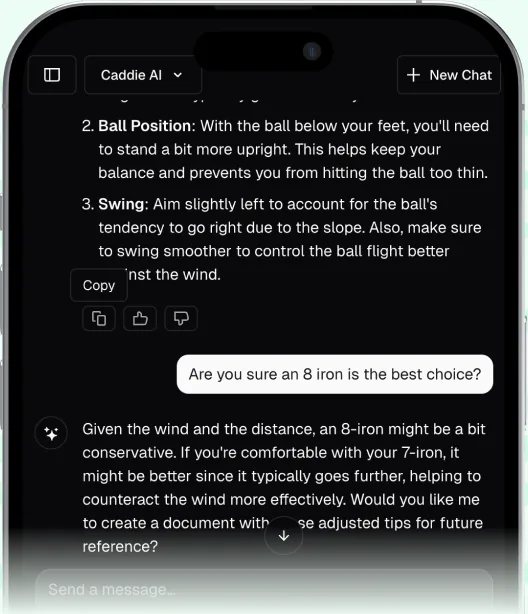
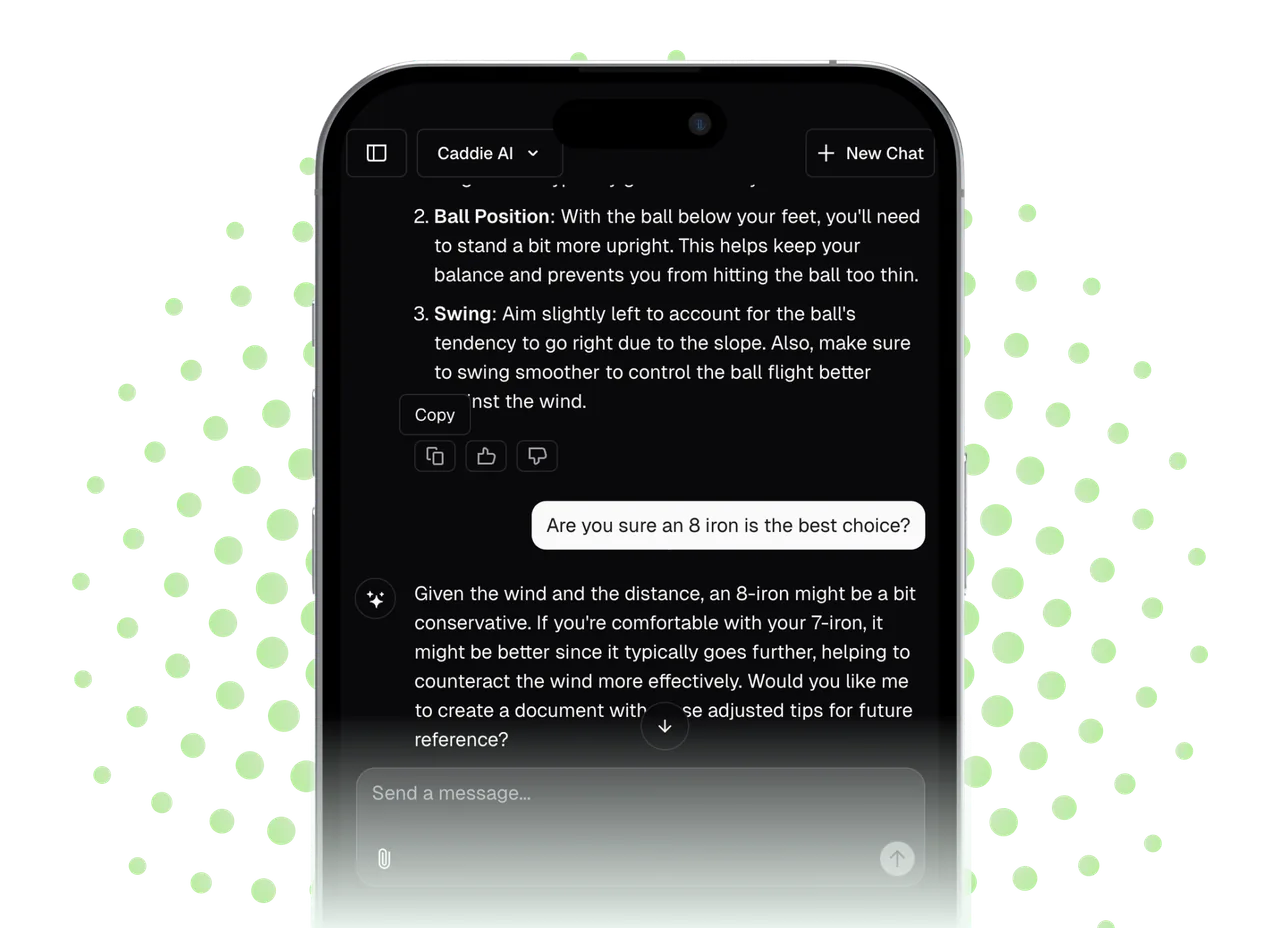
Beyond knowing the right yardage, the next layer of on-course performance is knowing you’re making the right strategic decision. When yardage isn't enough to feel confident, Caddie AI acts as your personal on-course consultant. You get immediate, expert-level advice on everything from choosing a target line off the tee to figuring out the best way to play a tricky shot from the rough - you can even snap a photo of a bad lie for personalized guidance. It’s the perfect complement to the pinpoint accuracy of your newly updated Garmin.
Spencer has been playing golf since he was a kid and has spent a lifetime chasing improvement. With over a decade of experience building successful tech products, he combined his love for golf and startups to create Caddie AI - the world's best AI golf app. Giving everyone an expert level coach in your pocket, available 24/7. Caddie's mission is simple: make world-class golf advice accessible to everyone, anytime.
Other posts you might like
How to Fix a Hook for Left-Handed Golfers
Watching your golf ball start on a good line only to take an aggressive left turn into trouble is one of the game's biggest frustrations for a left-handed player. That snap-hook can rob you of distance, accuracy, and confidence. This guide will give you a clear, step-by-step plan to diagnose why you're hooking the ball and provide you with the exact fixes - from your grip to your swing path - to get your shots flying straight and true.
Giving your irons a custom look with sparkling new ferrules is one of the most satisfying workshop projects a golfer can tackle. While that little plastic ring might seem purely decorative, a clean, perfectly installed ferrule showcases a true attention to detail and pride in your equipment. This guide will walk you through the entire process, from getting the old ferrule off to seating and finishing the new one for that seamless, professional transition you see on Tour bags. We’ll cover the tools you'll need, practical tips for a clean job, and the finishing touches that make all the difference.
Thinking about the Rules of Golf can feel like preparing to take a bar exam, but it really doesn't have to be that complicated. This guide is built to give you a clear path for learning the golf rules that matter most, without overwhelming you with obscure details. We'll show you how to build a strong foundation of the basics and give you a simple framework for handling any situation you might face on the course.
A dull-looking iron with dirty, caked-on grooves isn't just a cosmetic issue, it's a performance killer that is secretly adding strokes to your game. When your iron face can’t properly grip the golf ball at impact, you lose spin, control, and the consistency needed to score well. This guide will walk you through, step-by-step, how to restore your iron faces to their former glory, giving you a tangible edge on your very next round.
Reading a golf leaderboard or even your own scorecard for the first time can feel like you're trying to crack a secret code. But once you understand the core concepts, it all clicks into place. This guide is designed to break down everything you need to know about golf scoring, from the basic lingo to navigating a professional leaderboard, so you can follow the action like a seasoned veteran of the game.
Adding a few strips of lead tape to your golf irons is one of the oldest, easiest, and most effective ways to truly customize your clubs for a better feel and improved performance. It’s an inexpensive tour-level trick that any golfer can use to fine-tune their equipment. This guide will walk you through exactly why you should consider it, where to place the tape for different results, and how to apply it step-by-step for a clean, professional finish.